How to find IP address on Mac: local vs. public IP explained
Learn how to find IP address on Mac across local network interfaces and public gateways. Master Terminal shortcuts, understand private vs. public routing, and pin live network widgets to your desktop.
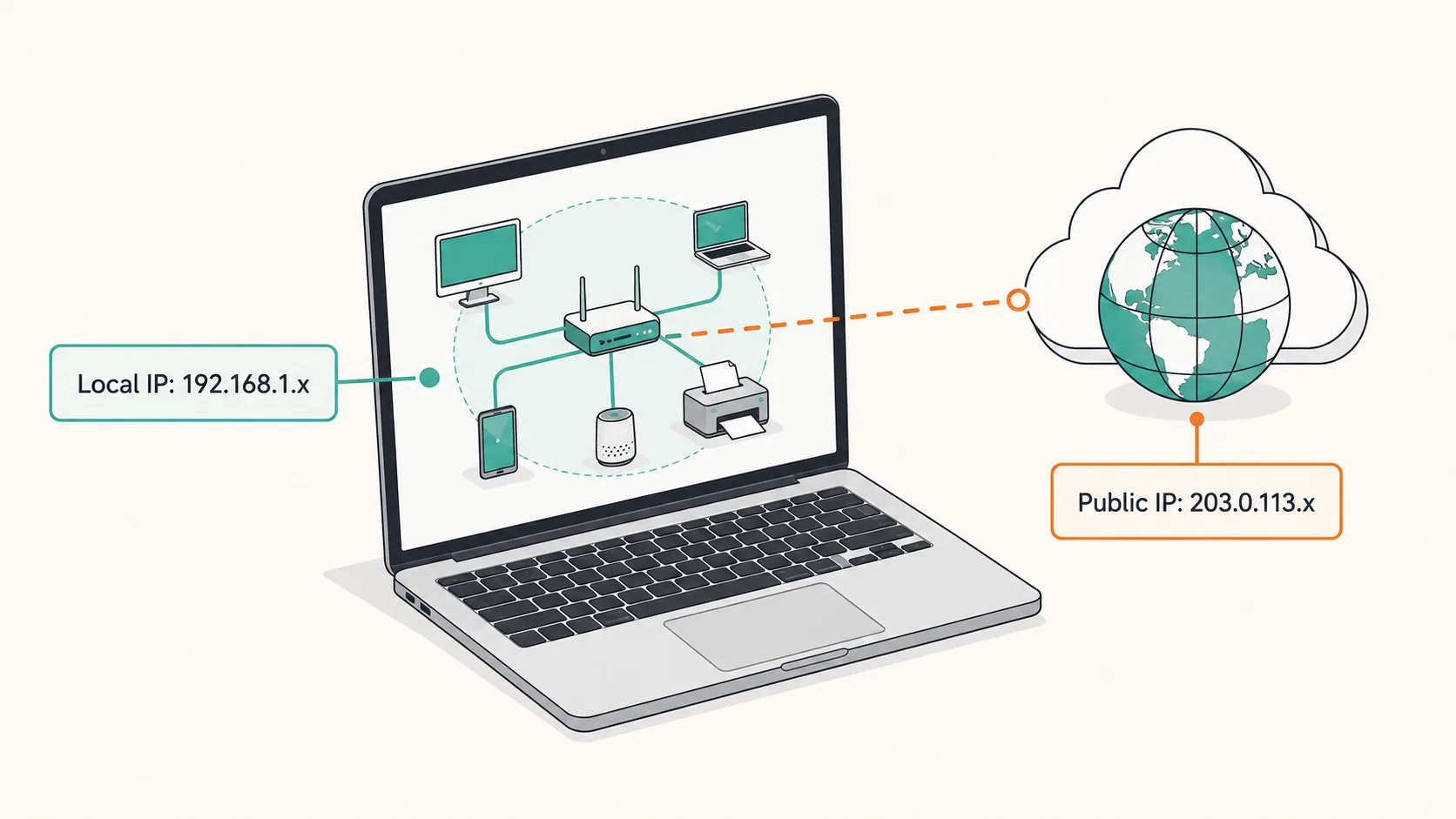
To find your IP address on Mac, open System Settings > Network, select your connected service, then open Details > TCP/IP. That shows the address for that network interface. The checker below answers a different part of the task: the public IPv4 address seen by an external website.
A Mac can have several addresses across Wi-Fi, Ethernet, VPNs, IPv4, and IPv6. On a typical home IPv4 network, the router gives your Mac a private address while websites see an internet-facing address. A browser lookup cannot replace checking the local interface in macOS.
Local address: check the connected interface in macOS. Public address: use the web checker. The web tool does not detect your private LAN address, ISP name, or location.
Best solution
To find your IP address on Mac, open System Settings > Network, select your connected service, then open Details > TCP/IP.
Check the public IPv4 address seen by ipify and copy it. For your local address, follow the macOS steps below. This lookup does not report ISP, location, or ICMP ping.
Start a lookup to see the address visible to ipify.
A VPN, proxy or relay can change the observed address. HTTPS request time is not ICMP ping, packet loss or internet speed.
Clicking Check contacts ipify, which sees the request address. Results stay in this page. No automatic polling.

Keep fast calculators and daily tools pinned right to your desktop.
Key solutions at a glance The main decisions from this guide, condensed into one table.
Quick Answer: How to Find Your Local IP Address on Mac
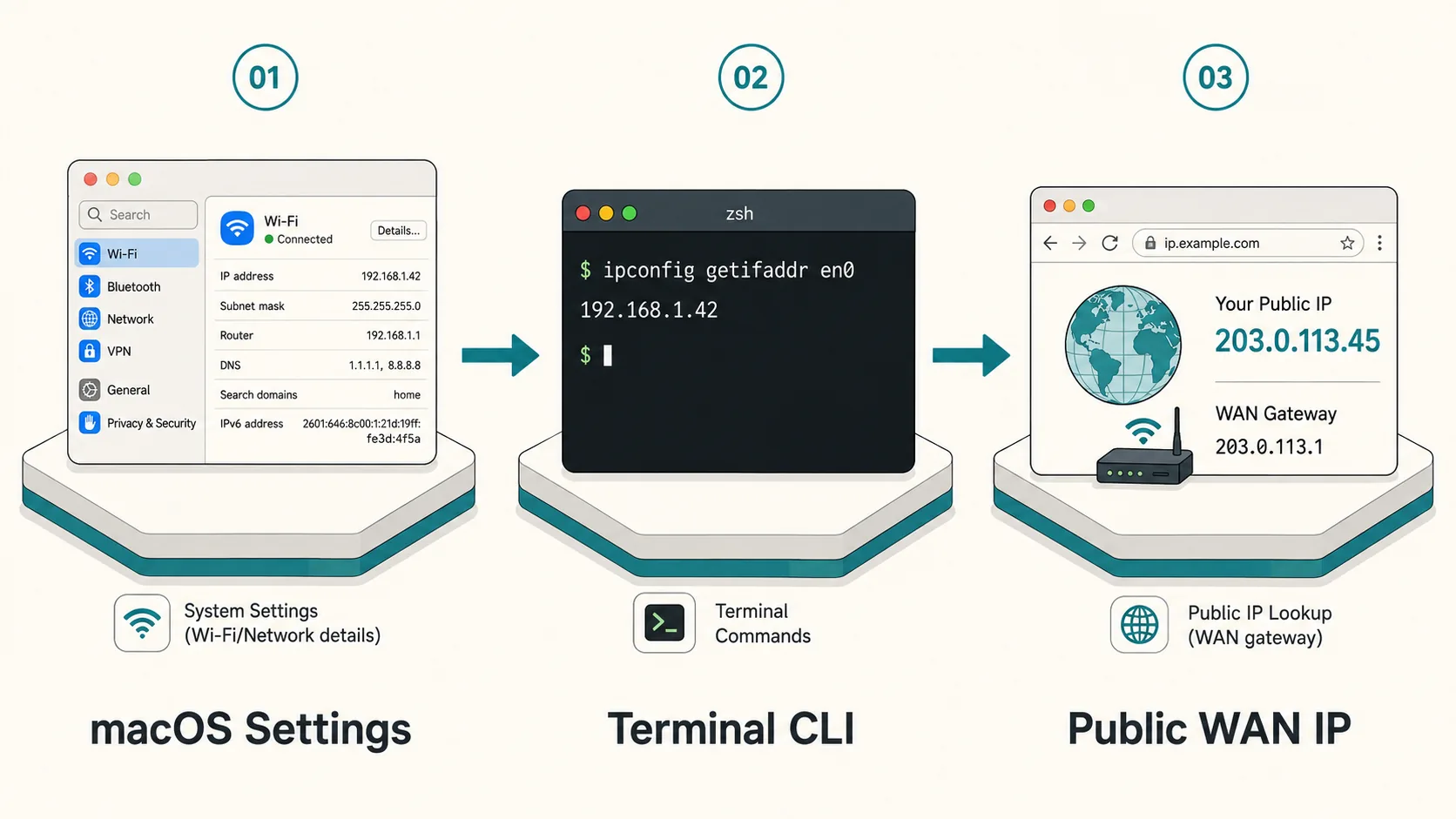
Use the network service you are actually connected through. The current macOS path is:
1. Click the Apple menu in the top-left corner and select System Settings.
2. Select Network, then select the connected Wi-Fi or Ethernet service.
3. Open Details > TCP/IP and read the IP address, subnet mask, and router information. If several services are connected, check each relevant service rather than assuming the first address is the one your application uses.
Terminal Commands: The Fastest Way for Power Users
Terminal is another way to inspect the same network information. First identify the interface you need; network device numbers depend on the Mac and its adapters.
Method 1: Run networksetup -listallhardwareports and find the Device listed for Wi-Fi or Ethernet. Then run ipconfig getifaddr with that device name. For example, ipconfig getifaddr en0 is correct only when the selected interface is en0; do not assume an Ethernet adapter is en1.
Method 2: Run ifconfig to inspect interface sections and their addresses. Read inet for IPv4 and inet6 for IPv6. Keeping the section headers makes it easier to tell which interface owns each address; an address from a VPN or loopback interface is not necessarily your Wi-Fi address.
Method 3: Run curl -s https://api.ipify.org to ask an external service for the public IPv4 address it sees. This contacts ipify and shares your request with that service. A VPN, proxy, or browser relay may make the address differ between Terminal and a browser.
Local IP vs. Public IP: Architecture Comparison Table
Understanding when to use your local IP versus your public IP prevents common security mistakes and routing errors. The following reference matrix outlines the essential differences:
| Attribute | Local IP Address (LAN) | Public IP Address (WAN) | Practical Operational Impact |
|---|---|---|---|
| IPv4 range | 10.0.0.0/8, 172.16.0.0/12, 192.168.0.0/16 | Globally routable IPv4 address | Private IPv4 is not routed on the public internet |
| Typical source | Router DHCP or manual configuration | ISP, VPN, proxy, or shared gateway | The observed public address depends on the route |
| Reachability | Within an appropriately routed private network | Internet-facing address | A public address alone does not guarantee inbound access |
| Common use | Local printers and development servers | Checking outbound network identity | Match the address to the connection being diagnosed |
| Visibility | Hidden from external internet | Visible to all visited websites and servers | Websites use public IP for regional geo-blocking |
For a service reached over the public internet, check the source address that service actually sees. Private cloud connections and VPN tunnels can use different routing. Do not change firewall rules merely because a web checker returned an address.
Common Pitfalls & Network Diagnostic Troubleshooting
When learning how to find IP address on Mac, users often encounter unexpected network behavior caused by modern privacy protections and dynamic routing:
1. iCloud Private Relay & VPN Masking: If you have iCloud+ Private Relay enabled in macOS System Settings > Apple Account > iCloud, Safari routes your traffic through two secure relays. As a result, web-based IP checkers will display an Apple proxy IP rather than your real ISP public IP.
2. Self-Assigned IPv4 (169.254.x.x): This link-local address often means the interface did not obtain a DHCP lease. It does not prove that the router refused a request. Check the connected network and use Renew DHCP Lease in TCP/IP settings if that network is meant to provide DHCP.
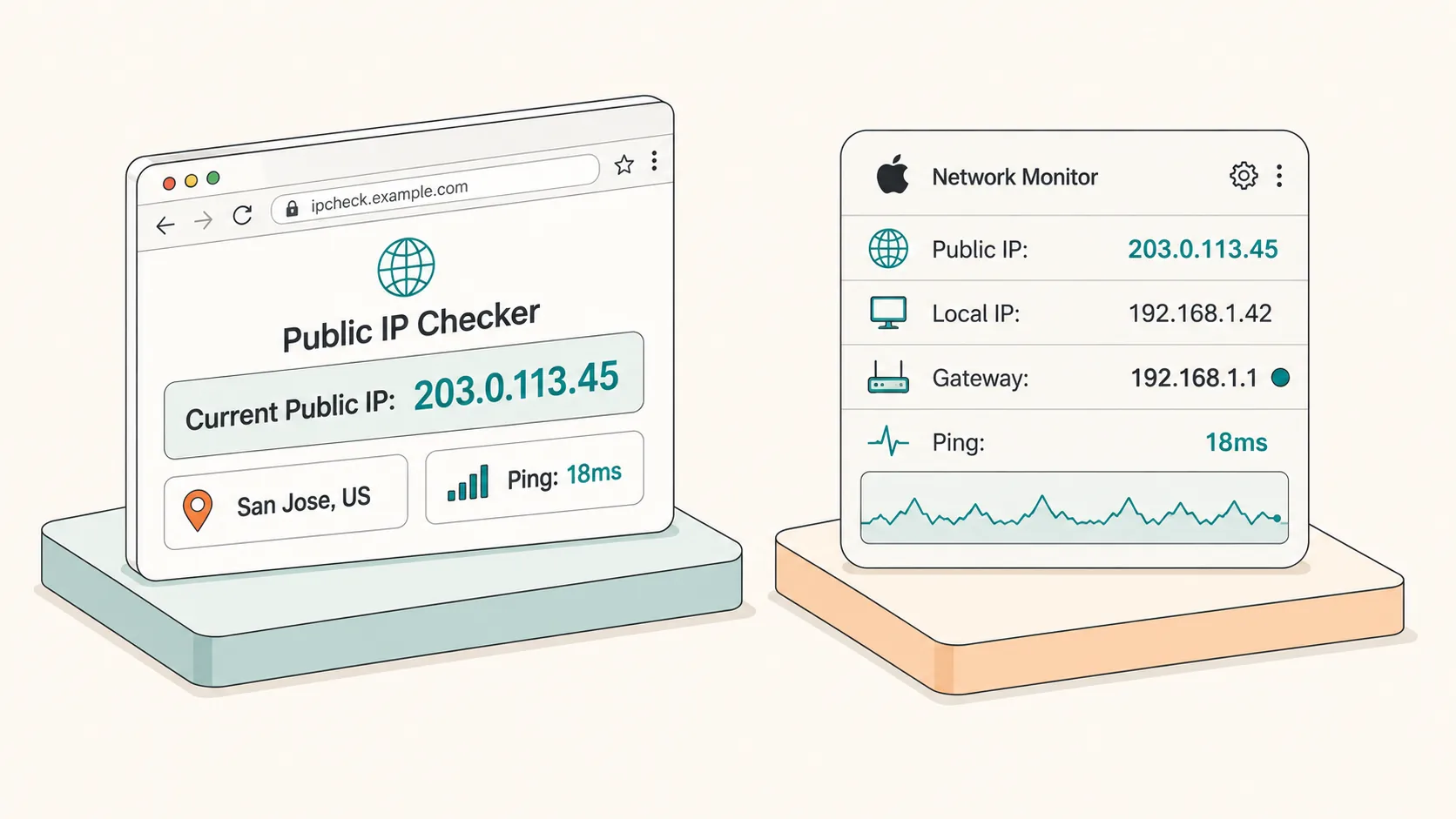
3. Dynamic DHCP Drift: Most home and office routers assign local IP addresses dynamically. If your development server was running on 192.168.1.42 yesterday, waking your Mac up tomorrow may assign 192.168.1.55. For permanent home lab servers or network file shares, configure DHCP IP Reservation inside your router admin console.
Use the Public Lookup Alongside macOS Settings
Check the current macOS steps or explore desktop widgets separately.
Knowing how to find IP address on Mac solves your immediate connection questions, but network statuses change constantly. IP addresses rotate when switching between office Wi-Fi and mobile hotspots, VPNs drop silently, and public gateways drift.
Constantly opening Terminal or digging through System Settings creates unnecessary cognitive overhead when managing remote servers or testing cloud deployments. Critical network parameters deserve glanceable, persistent desktop visibility.
Select Check connection to make an HTTPS request to ipify. The service sees the address used by that request. Its duration is not an ICMP ping, a speed test, or proof that every website is reachable. The tool does not poll automatically or read private Mac network settings.
Frequently Asked Questions
Why does my IP address change when I restart my Mac or Wi-Fi?
Most home and office networks use Dynamic Host Configuration Protocol (DHCP) to lease IP addresses temporarily. When your lease expires or your Mac reconnects, the router may assign a different available local IP. You can reserve a fixed static IP in your router settings if needed.
Can someone find my physical address from my public IP?
An ordinary IP geolocation lookup estimates a region, not a reliable street address. Accuracy varies, especially with VPNs and mobile networks. An IP can still be linked with other records, so do not treat it as anonymous or publish it unnecessarily.
What is the fastest keyboard shortcut to see Wi-Fi details on Mac?
Hold down the Option (⌥) key on your keyboard and click the Wi-Fi icon in the top macOS menu bar. A rich diagnostic drop-down will appear instantly, revealing your local IP address, router gateway, BSSID, security protocol, and Wi-Fi transmission rate.
Finding your IP address on Mac is straightforward once you separate local LAN from public WAN routing.
Use native System Settings or Terminal commands for immediate checks, and remember to check for VPN masking.
For repeated desktop checks, explore Kepo widgets separately; this page does not automatically install a configured network monitor.
Stay informed with Kepo on your desktop
Embed interactive widgets, monitor dynamic sites, track APIs, and run ambient AI agents right on your macOS desktop.
Related Articles
View all posts →How to calculate days between dates and business days
Enter two dates to count calendar days, weekdays, and weekends. Check whether to include the end date, follow a worked example, and account separately for holidays.
How to crop an image on Mac: native tools and instant workflows
Crop an image on Mac with Preview or Photos, or try the center-crop tool on this page. Compare selection controls, aspect ratios, PNG export, and ways to preserve the original.
How to add widgets on Mac with AI-built custom widgets
A practical guide to adding widgets to the Mac desktop, using the built-in widget gallery, and creating custom widgets when the widget you need does not already exist.
How to create a widget with AI
A useful AI-built widget starts with one repeated check: the feed, website, status, task, or text workflow you want to keep close.