Plash Alternative for Mac: Website Wallpaper vs Live Web Widgets on a Shortcut
Plash puts one website behind your desktop and now needs macOS 26.4. Here is when a website wallpaper fits, when a shortcut panel of live web widgets is the better Plash alternative, and how to switch.

If you want one website to sit behind your desktop all day (a calendar, a weather map, a photo of the day), Plash is still the simplest tool for it. If you actually re-check several small things from different sites (a feed, a status page, a release list), a website wallpaper is the wrong shape, and a panel of live web widgets you open with a shortcut works better.
Two facts often decide it before features do: the current Plash version requires macOS 26.4 or later, and Plash shows only one website at a time.
Create it with Kepo AI
Plash puts one website behind your desktop and now needs macOS 26.4.
Key solutions at a glance The main decisions from this guide, condensed into one table.
What Plash does well
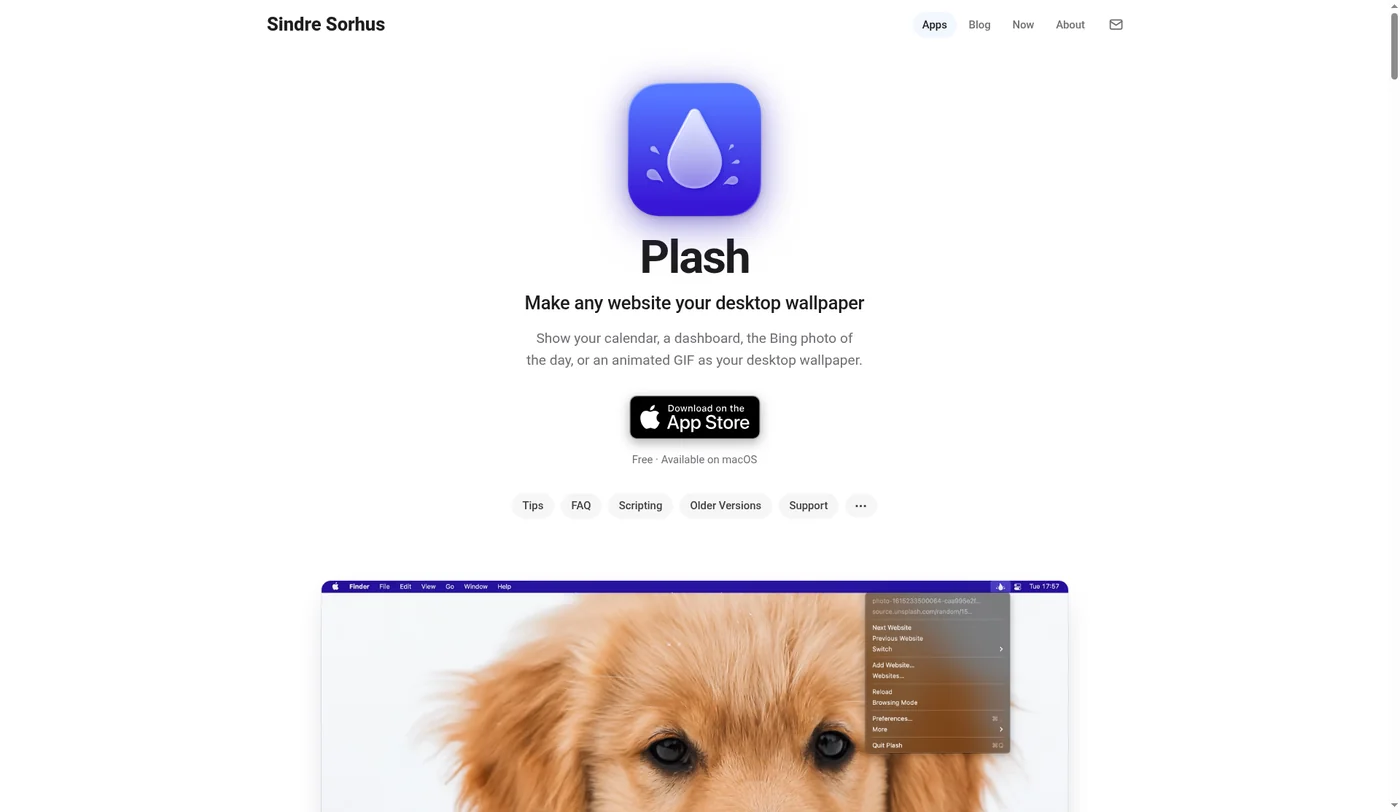
Plash, by developer Sindre Sorhus, makes any website your Mac desktop wallpaper. Per its website and Mac App Store listing, it can:
- Show a remote or local website behind your windows, on the display you choose.
- Reload the page on a custom interval.
- Keep a list of websites and switch between them, including from Shortcuts or a URL scheme.
- Inject custom CSS and JavaScript, invert colors, lower opacity, and pause on battery.
- Let you click into the page with Browsing Mode.
It is free, has no ads, and is light: the developer says the app itself usually uses about 40 MB, while the websites you load can use much more.
Where Plash stops being the right tool
Plash's own FAQ is honest about its limits. These are the ones that send people looking for an alternative:
| Limit | What it means day to day |
|---|---|
| One website at a time | The developer says showing several sites at once is out of scope. Three sources means three rotations or one custom page you build yourself. |
| It sits behind your windows | You see it only when the desktop is visible. On a laptop with full-screen apps, that is rarely. |
| Whole page, not the part you need | You can crop with CSS margins or scroll offsets, but you are still loading the full site to read one number. |
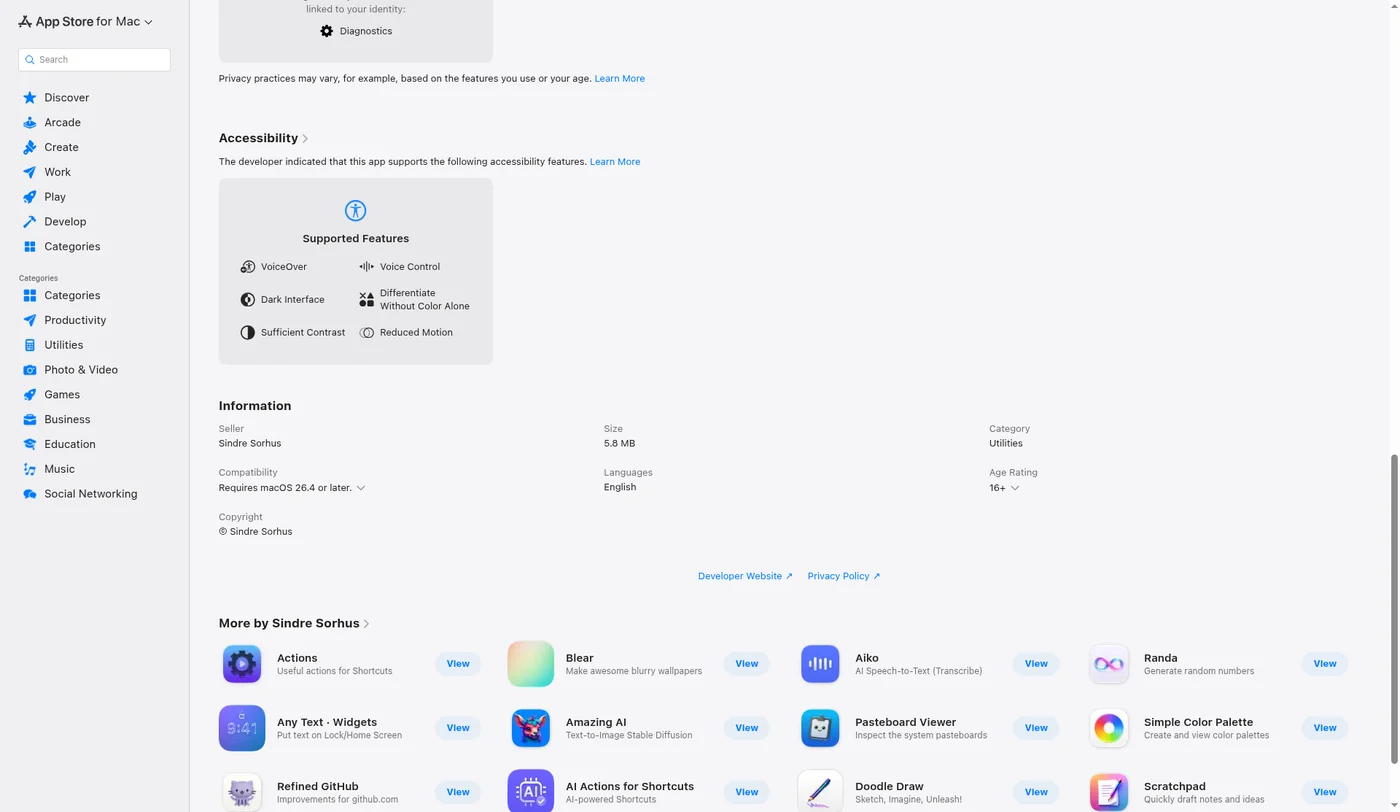
| macOS 26.4 or later | The App Store version requires macOS 26.4. Older Macs need an archived build from the developer's site. |
| No longer open source | The GitHub repo now explains the app is closed source and keeps issues there for requests and bug reports. |
On versions, the Mac App Store shows version 2.17.4 (October 8, 2026) with "Requires macOS 26.4 or later". The developer's site keeps older builds, for example 2.16.0 for macOS 15+, and a non-App Store build (2.17.2) that requires macOS 26.
A wallpaper is ambient: you glance at it when it happens to be visible. A check is intentional: you want it now, on top of whatever you are doing. Most "Plash alternative" searches are really about the second job.
Website as wallpaper vs live web widgets on a shortcut
Both put web content outside the browser. They answer different questions:
| Website as wallpaper (Plash) | Live web widgets on a shortcut (Kepo) | |
|---|---|---|
| What you see | One full page | Several small widgets, each one slice of a source |
| When you see it | When the desktop is uncovered | When you press the shortcut, over any app |
| Sources | Any URL, one at a time | Websites, RSS feeds and APIs side by side |
| Interaction | Browsing Mode toggle | Open the widget, then click through to the source |
| Best for | Ambient calendars, photos, maps | Repeated checks you do many times a day |
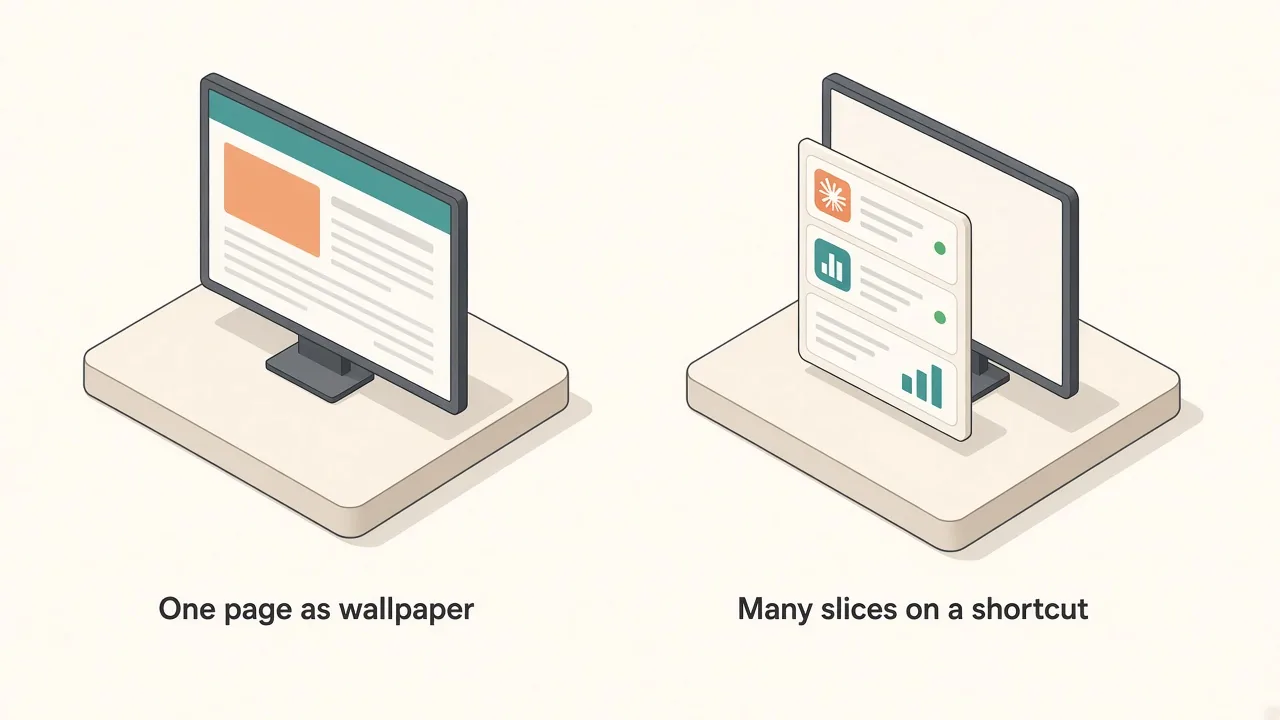
The trade is visibility for focus. Plash is always there when the desktop is. A shortcut panel is never in your way, but you have to call it.
When to keep Plash
Keep Plash (or add it next to Kepo) when:
- The content is decorative or ambient: Bing photo of the day, a slow weather map, an animated GIF.
- You have a spare external display where a full-screen calendar or dashboard can live permanently.
- You are on macOS 26.4 or later, or you are fine running an older archived build.
- You really need one page, not three.
Plash plus a shortcut panel is a perfectly good setup: wallpaper for mood, panel for checks.
When a shortcut panel is the better Plash alternative
Switch the job to live web widgets when:
- You keep rotating websites in Plash because you track more than one source.
- You mostly work in full-screen apps and only see the wallpaper when you hide everything.
- You only care about one part of a page: the latest five headlines, a status badge, the newest release tag.
- Your Mac is on an older macOS and the current Plash build will not install.
In Kepo each source becomes its own small widget: a website widget for a page section, an RSS widget for a feed, a status check for an uptime page. They sit together in one panel that opens with a global keyboard shortcut and gets out of the way when you go back to work.
How to move a Plash setup into web widgets
Start from the sites already in your Plash list:
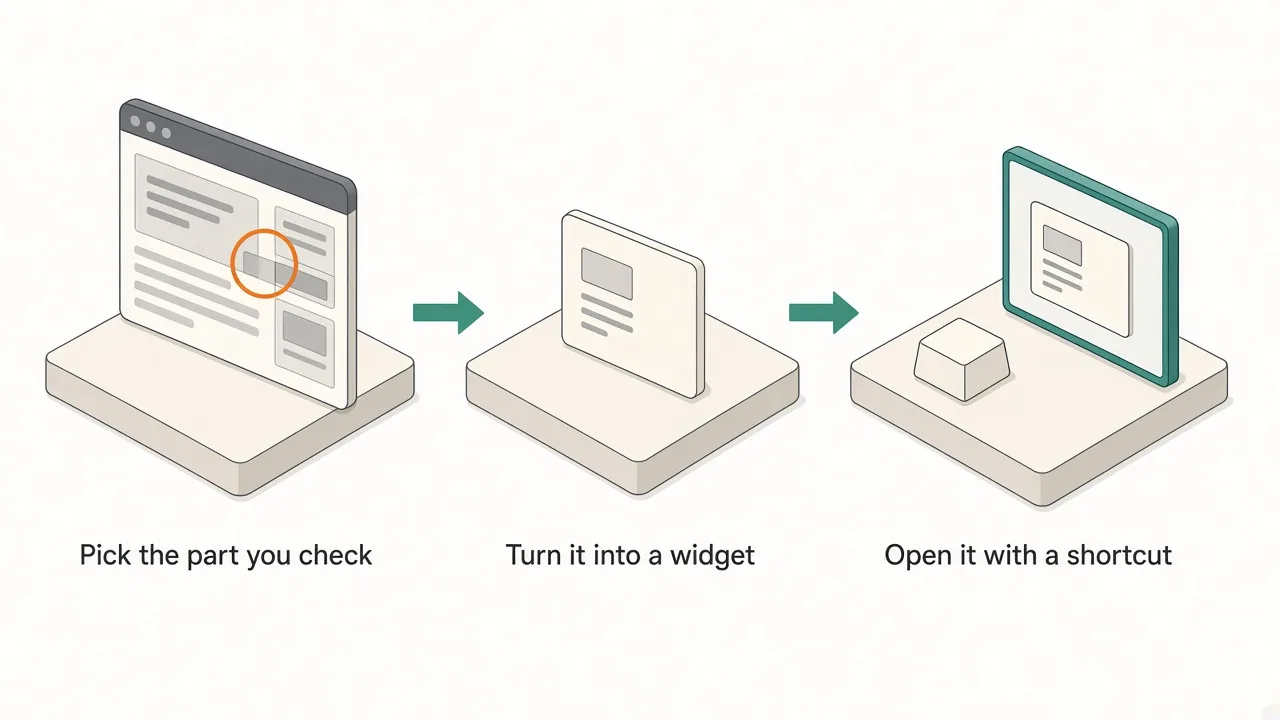
- List what you look at on each page. Write down the one thing per site you actually read: "top 5 posts", "is it green", "latest version".
- Turn each item into a widget. Use a ready-made widget from free widgets for Mac when one exists, or describe the source and build a custom Mac widget.
- Group them in one panel and set a refresh pace that matches how fast the source changes.
- Keep the wallpaper only for ambient content. If nothing ambient is left, you can quit Plash.
Kepo itself needs an Apple Silicon Mac; details are on the Kepo system requirements page.
FAQ
Is Plash still free?
Yes. Plash is free on the Mac App Store with no ads. The developer's site also offers a non-App Store build for people who cannot use the App Store.
What macOS version does Plash need?
The current App Store version (2.17.4) requires macOS 26.4 or later. The developer's site lists older builds for earlier systems, such as 2.16.0 for macOS 15 and 2.15.0 for macOS 14.
Is Plash open source?
Not anymore. The GitHub repository says the app is no longer open source, but issues are still used for feature requests and bug reports.
Can Plash show multiple websites at once?
No. Plash shows one website at a time and can switch between saved sites. Showing several at once is out of scope according to its FAQ.
Can I use Plash and Kepo together?
Yes. They do different jobs: Plash for one ambient page behind your windows, Kepo for the live checks you want on top of your work with a shortcut.
Soft CTA
If your Plash list has turned into a rotation of dashboards you keep checking, move those checks into a panel. Download Kepo, rebuild your two or three most-checked sites as Mac desktop widgets, and leave the wallpaper for something nice to look at.
Stay informed with Kepo on your desktop
Embed interactive widgets, monitor dynamic sites, track APIs, and run ambient AI agents right on your macOS desktop.
Related Articles
View all posts →Best RSS readers for Mac: reader apps vs desktop RSS ticker widgets
The best RSS setup for Mac depends on whether you want to read many feeds or keep a few work signals visible on your desktop.
Kepo vs macOS widgets: custom AI widgets for Mac
The macOS widget gallery is the right place to start, but it can only show widgets that supported apps already provide.
Kepo vs Raycast: Mac desktop widgets vs command launcher
Raycast and Kepo both reduce context switching on Mac, but they solve different parts of the workflow.
Kepo vs browser tab managers: AI widgets instead of more tabs
Tab managers and desktop widgets both reduce browser clutter, but they do it from opposite directions.