Stock Watchlist Desktop Widget for Mac: Native Stocks, Menu Bar, and Custom Live Sources
Set up a Mac stock watchlist widget with Apple Stocks, know when menu-bar tickers help, and when a custom website/API widget beats the gallery.
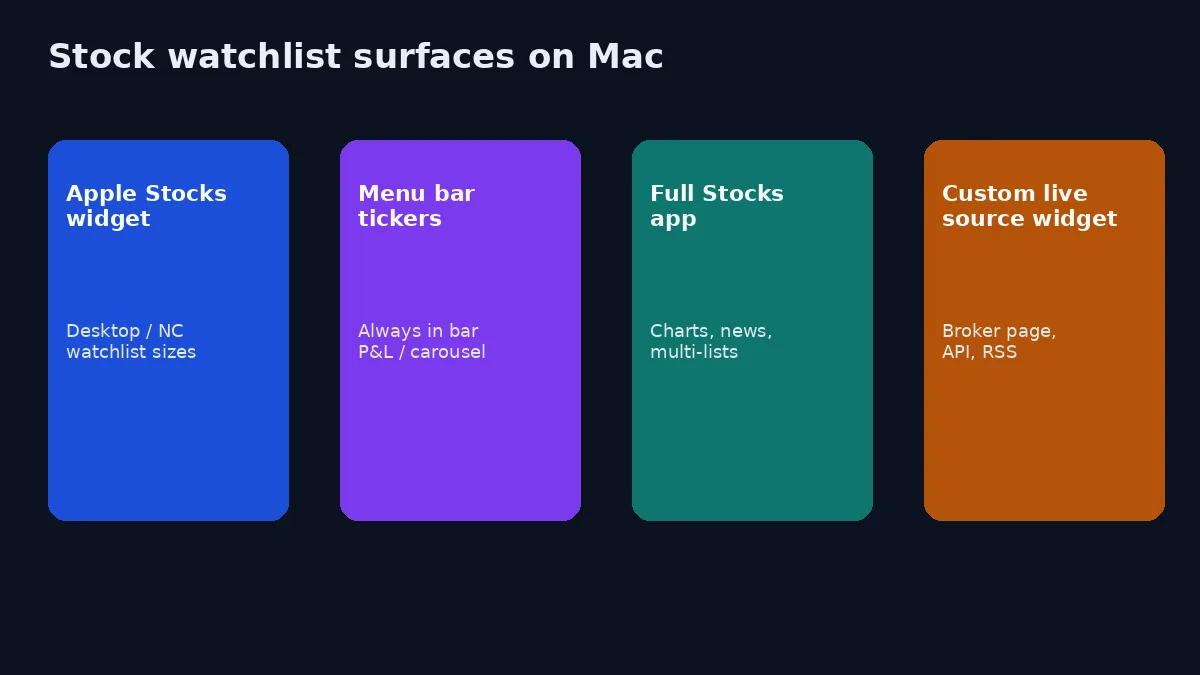
A stock watchlist widget on Mac should answer one question fast: did anything I care about move enough to interrupt me? Everything else — charts, filings, broker tickets — belongs one click away, not in the wallpaper.
Apple’s Stocks app already covers the mainstream path. Menu-bar apps cover “always in the corner.” Custom live-source widgets cover the broker page, niche symbol, or earnings list Stocks never shows. This guide ranks those surfaces by job, not by marketing adjectives.
Create it with Kepo AI
Set up a Mac stock watchlist widget with Apple Stocks, know when menu-bar tickers help, and when a custom website/API widget beats the gallery.
Key solutions at a glance The main decisions from this guide, condensed into one table.
Start with Apple Stocks (most people should)
Apple documents Stocks widgets for Notification Center and the Mac desktop: Symbol widgets and Watchlist widgets, customizable for specific symbols or lists, with optional news stories where available (View stocks on Mac).
Watchlists themselves are managed in the Stocks app — create lists like tech holdings vs indexes vs “maybe later,” then point widgets at those lists (Create and manage watchlists). My Symbols aggregates tickers you add; you cannot delete that default list.
Concrete setup that stays readable
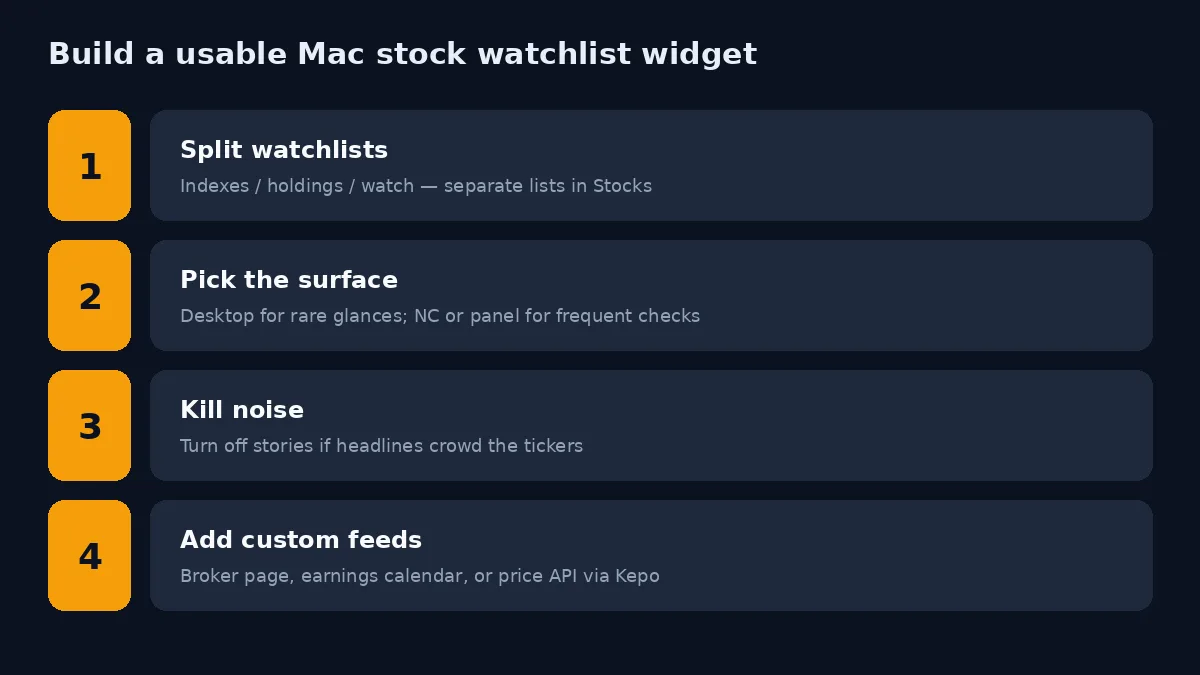
- In Stocks, split Indexes, Holdings, and Watch into separate watchlists. Mixing them makes every widget noisy.
- Control-click the desktop → Edit Widgets (or Edit Widgets from Notification Center). Search Stocks.
- Add one Watchlist widget for Holdings at medium or large. Add a Symbol widget only for the single ticker you truly babysit.
- Control-click the widget → Edit. Turn stories to Never if headlines crowd price rows (a common complaint on Apple Discussions when news appears above symbols).
- Prefer Notification Center if you check prices a few times a day; prefer desktop only if the list must stay visible beside a trading or research window.
Opinion: one clean Holdings widget beats three overlapping Stocks tiles plus business news. News is a different habit — use News or a feed widget if you want headlines.
When the Stocks widget stops being enough
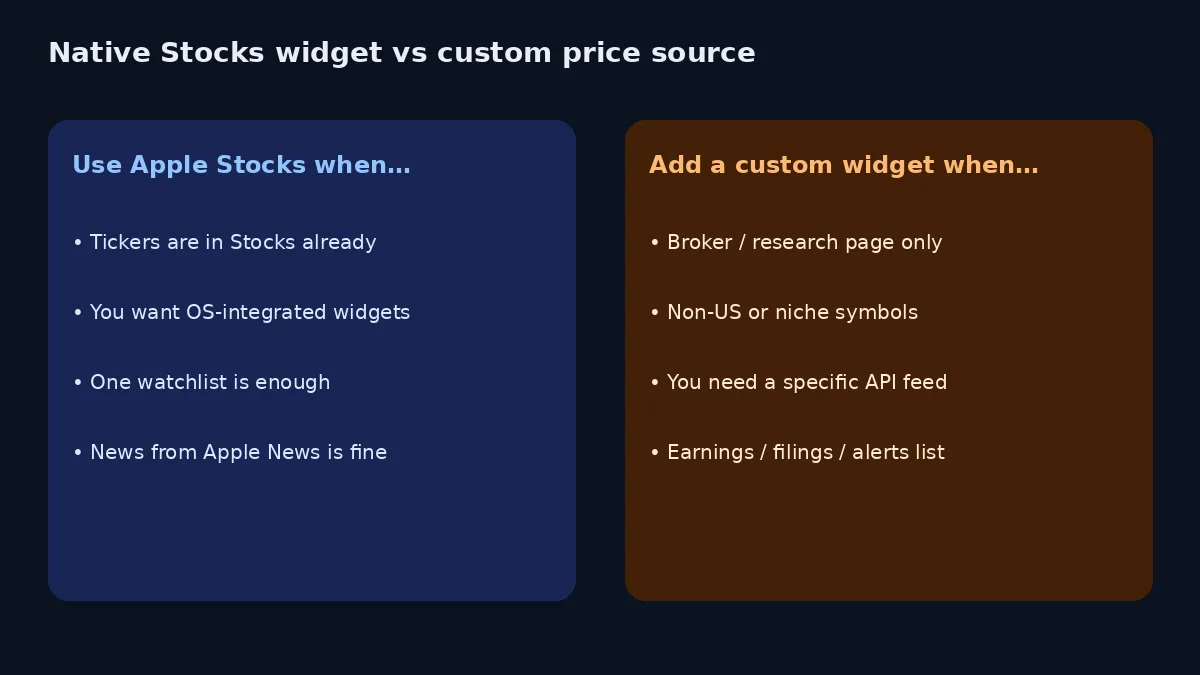
Native Stocks widgets fall short when:
- The price you track only exists on a broker or research site.
- You need portfolio P&L with cost basis in the menu bar all day (third-party menu-bar apps such as StockDock or Pulse pitch this explicitly; verify their data sources and disclaimer language yourself).
- You follow markets or instruments Stocks does not present the way you need.
- Your “watchlist” is really an earnings calendar, filing list, or status of an order page.
Generic “best stock widget” posts (including Windows-first roundups that tack on Mac steps) often stop at “add the Stocks widget.” That is incomplete for anyone whose job is monitoring, not casually glancing at AAPL.
Menu bar vs desktop vs shortcut panel
| Surface | Best for | Weakness |
|---|---|---|
| Stocks desktop widget | Ambient glance on a clear desktop | Competes with windows; limited to Stocks data |
| Stocks in Notification Center | On-demand check without clutter | Extra gesture; still gallery-bound |
| Menu bar ticker | Continuously visible quote or P&L chip | Easy to overstuff the bar; not great for long lists |
| Kepo live-source widget | Broker page section, price API, RSS of alerts | Not a full trading terminal |
Kepo’s angle: we are not replacing a broker. We are removing the browser tab you reopen to see one table or one status line. Pair that with Stocks for mainstream symbols.
Build a watchlist stack that survives a trading week
1. Decide the interrupt rule
Write it down: “Interrupt me if Holdings move more than X%” or “only check at open / lunch / close.” Widgets without a rule become anxious wallpaper.
2. Put official quotes in Stocks
If the symbol lives in Stocks, use Stocks. Sync across Apple devices for free. Do not duplicate the same five tickers in three third-party toys.
3. Put specialty sources in a focused widget
Examples that fit a website widget or API-shaped custom widget:
- A broker positions table you already trust (read-only glance; never treat a widget as a trading UI).
- An earnings calendar page section for the names you hold.
- A market-status or circuit-breaker banner during volatile sessions.
- An RSS or alerts feed from a research source you actually read.
Keep each widget to one job. “Whole Bloomberg homepage” is not a widget.
4. Choose the summon style
- Day trader with a spare display: desktop Stocks + one custom tile can make sense.
- Builder who peeks at markets between builds: Notification Center Stocks + Kepo panel on a shortcut.
- Privacy-conscious / shared office: avoid always-on P&L on the wallpaper; use a panel or menu bar you can clear.
Explore broader widget choices in best widgets for Mac and the Mac desktop widgets guide. Custom builds: custom Mac widgets.
Refresh expectations (stay honest)
Apple’s Stocks widgets refresh on the system’s widget schedule; they are not a guaranteed tick-by-tick feed. Menu-bar apps that advertise WebSocket quotes are a different architecture — and still come with delayed/indicative-data caveats depending on provider.
macOS 27 Golden Gate notes (for example MacRumors) mention widgets updating more closely while their app is open. That can help if Stocks is running, but it does not turn WidgetKit into a pro terminal. If you need hard real-time execution data, use your broker’s app.
Sample watchlist layouts
Investor, weekly rebalance.
NC: one Holdings watchlist widget (stories off).
Kepo: earnings calendar section for names you hold; optional research RSS.
Desktop: empty.
Menu bar: optional single “spy” index if you like a pulse — not a second full list.
Active swing trader (still not a terminal).
Desktop: Stocks Holdings on a side display.
Menu bar: one high-priority symbol or P&L chip from a dedicated app you trust.
Kepo: broker order-status or margin page section if you reopen it constantly — never place trades from a widget.
Builder who holds a few tickets.
NC: small Stocks widget for 3–5 symbols.
Kepo: nothing finance-related unless you also track a market blog via RSS.
Avoid wallpaper anxiety quotas.
Data hygiene and disclaimers
Widgets show indicative information. They lag, they omit after-hours quirks, and they are the wrong place for compliance-sensitive decisions. Keep the broker confirmation UI as the system of record. If a third-party menu-bar app cites Yahoo Finance WebSockets or similar, read its README for delay and market coverage before you trust an after-hours print.
When macOS 27 keeps Stocks open and refreshes widgets more aggressively (per Golden Gate coverage), treat that as a convenience for people already in the app — not as a promise of institutional-grade ticks.
FAQ
Can I show multiple stock watchlists as Mac widgets?
Yes. Create multiple watchlists in Stocks, then add multiple Stocks widgets and point each at a different list. Keep sizes modest so the desktop stays usable.
Is there a free stock watchlist widget for Mac?
Apple Stocks widgets are included with macOS. Third-party menu-bar apps may be free/open-source or paid — check each project’s license and data terms. Kepo covers custom live sources beyond Stocks; see free widgets for Mac for how free and paid pieces fit.
Can Kepo replace the Stocks app?
No. Use Stocks for Apple-supported symbols and charts. Use Kepo when the glance lives on a website, feed, or API Stocks does not expose.
Soft CTA
Set up one Stocks watchlist widget for holdings you already track. If you still keep a broker or research tab open for a second glance, turn that section into a Kepo widget and put it in the shortcut panel — leave trading actions where they belong, in the full app.
Stay informed with Kepo on your desktop
Embed interactive widgets, monitor dynamic sites, track APIs, and run ambient AI agents right on your macOS desktop.
Related Articles
View all posts →How to calculate days between dates and business days
Enter two dates to count calendar days, weekdays, and weekends. Check whether to include the end date, follow a worked example, and account separately for holidays.
How to find IP address on Mac: local vs. public IP explained
Learn how to find IP address on Mac across local network interfaces and public gateways. Master Terminal shortcuts, understand private vs. public routing, and pin live network widgets to your desktop.
How to crop an image on Mac: native tools and instant workflows
Crop an image on Mac with Preview or Photos, or try the center-crop tool on this page. Compare selection controls, aspect ratios, PNG export, and ways to preserve the original.
How to add widgets on Mac with AI-built custom widgets
A practical guide to adding widgets to the Mac desktop, using the built-in widget gallery, and creating custom widgets when the widget you need does not already exist.