Do widgets drain battery? AI widget refresh explained
A small static widget usually uses little energy. A frequently refreshing custom widget can cost more, especially if it keeps checking the network.
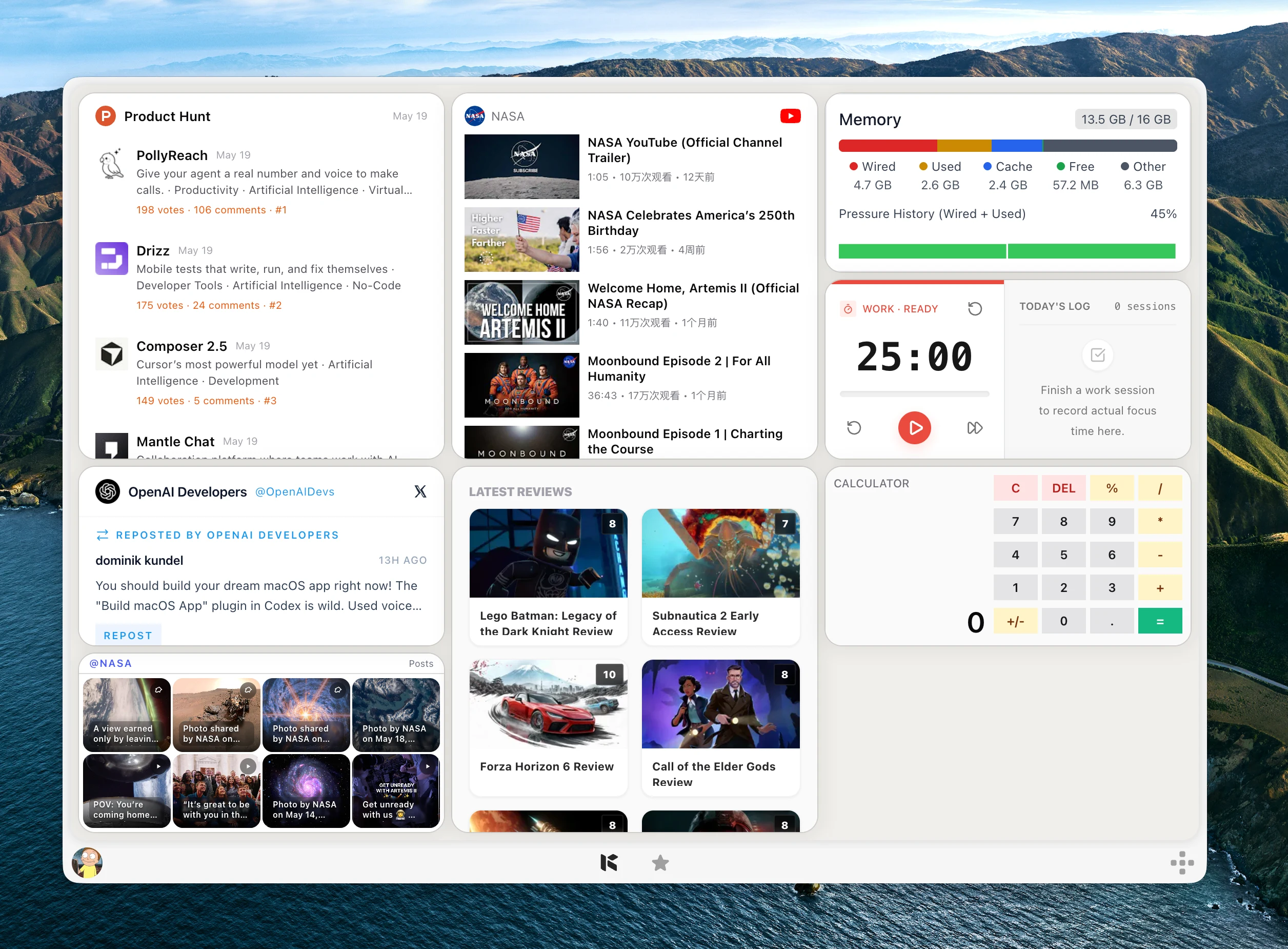
Widgets can use battery, but not all widgets behave the same way. A clock, calendar, or static note is different from a live feed, map, price tracker, or website monitor.
The battery impact usually comes from what the widget does behind the scenes: refreshing, using the network, reading location, animating, or waking the related app.
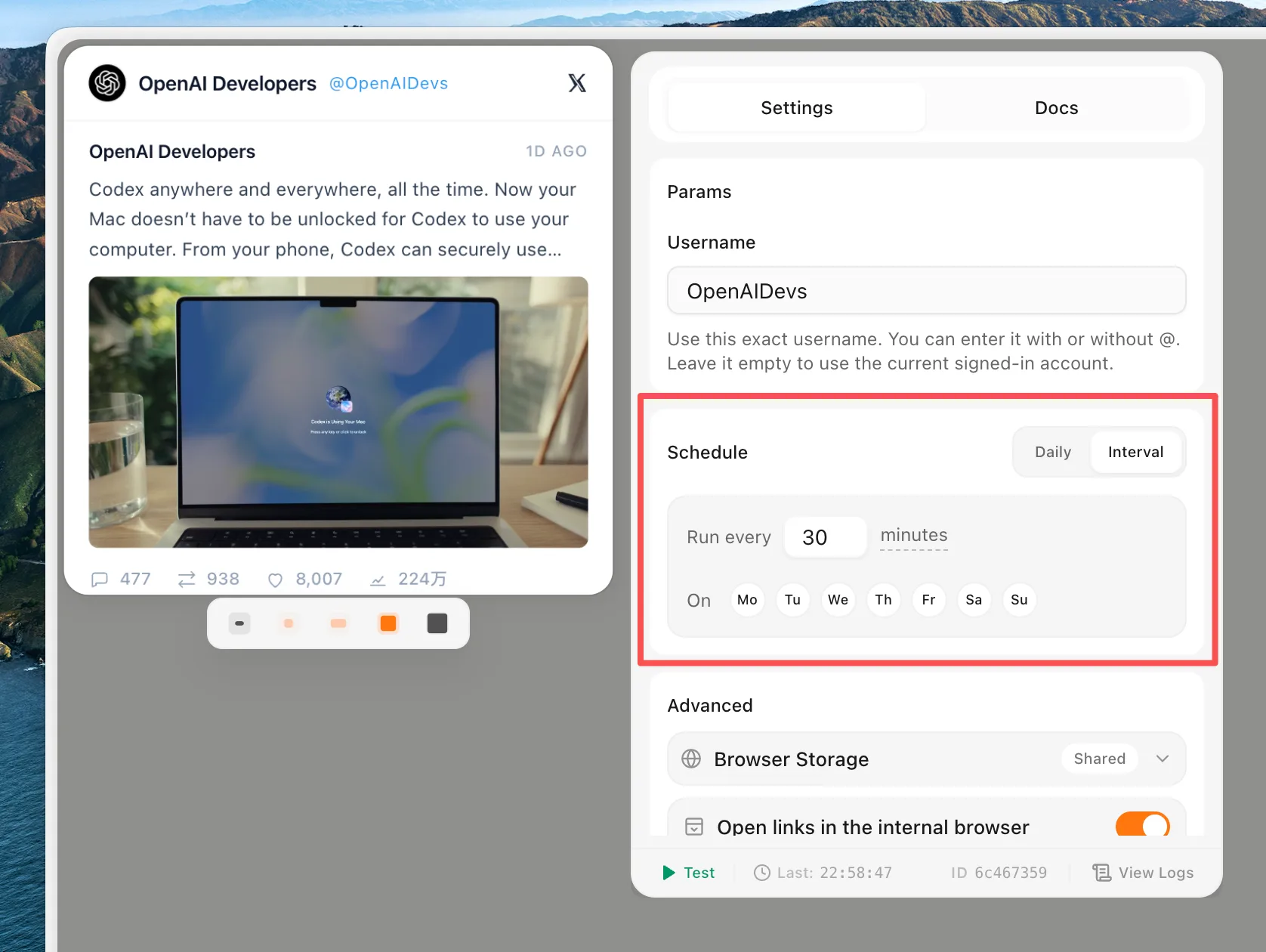
For custom widgets, the most important battery setting is refresh behavior. The less often a widget checks for new data, the less work it asks your Mac to do.
Create it with Kepo AI
For custom widgets, the most important battery setting is refresh behavior.
Key solutions at a glance The main decisions from this guide, condensed into one table.
What makes widgets use battery
Widgets use more energy when they refresh often, fetch data from the network, run animation, watch location, or depend on an app that keeps background work active.
A widget that updates every few seconds can matter. A widget that updates every 15, 30, or 60 minutes is usually much easier to justify.
Check battery usage on Mac
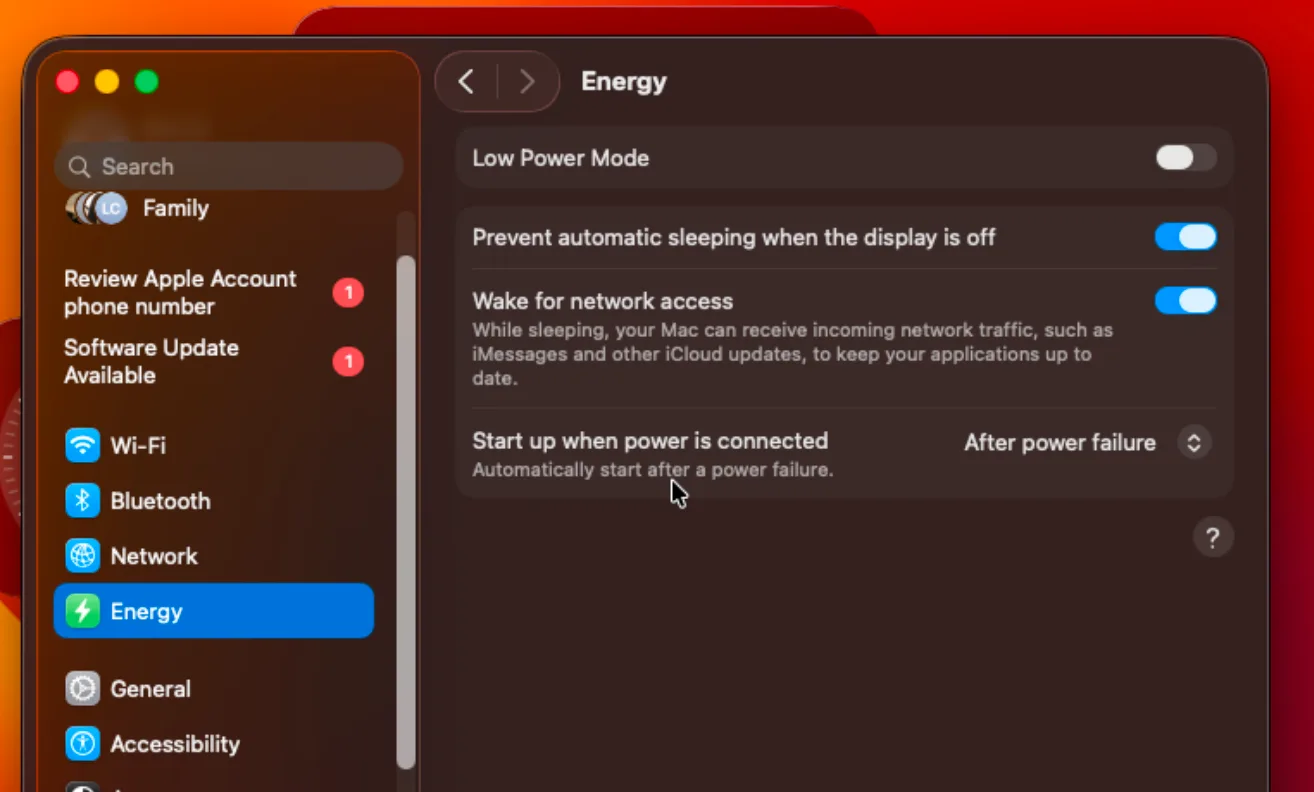
Open System Settings and check Battery settings if your Mac battery life feels worse than usual. Apple also provides Low Power Mode and battery usage views for reducing energy use.
Use the Batteries widget carefully
The Batteries widget is useful for checking your Mac and connected devices. If devices do not show up, check whether they are nearby, connected, charged, and supported by the system view.
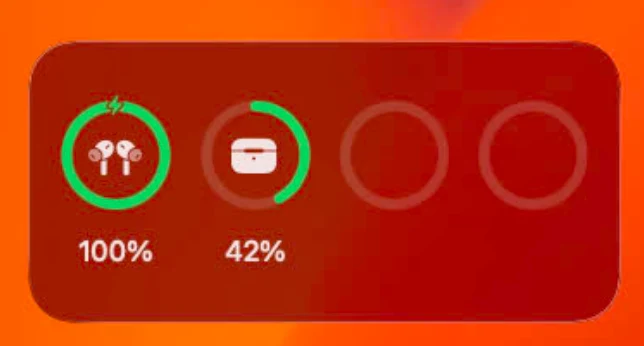
If a device still does not appear, the issue is usually connection, support, or device state, not the widget itself.
Reduce battery impact in Kepo
For Kepo widgets, choose a refresh interval that matches the job. A website status check may not need to run every minute. A feed reader may be fine at 30 minutes. A manual refresh may be best for low-priority widgets.
Keep the widgets that save real time. Remove or pause widgets that look interesting but do not change your decisions.
Widget battery FAQ
Do widgets drain battery?
Widgets can use battery, especially if they refresh often, use the network, animate, or depend on background app activity.
How do I make widgets use less battery?
Use fewer live widgets, increase refresh intervals, remove widgets you do not use, and check Battery settings when battery life changes.
Why do devices not show up on my Batteries widget?
Usually the device is not connected, not nearby, not charged, or not supported in that view. Check the device connection before blaming the widget.
Widgets are worth using when they save more attention than they cost.
For live widgets, keep refresh intervals realistic and remove the ones you do not use.
Stay informed with Kepo on your desktop
Embed interactive widgets, monitor dynamic sites, track APIs, and run ambient AI agents right on your macOS desktop.
Related Articles
View all posts →How to calculate days between dates and business days
Enter two dates to count calendar days, weekdays, and weekends. Check whether to include the end date, follow a worked example, and account separately for holidays.
How to find IP address on Mac: local vs. public IP explained
Learn how to find IP address on Mac across local network interfaces and public gateways. Master Terminal shortcuts, understand private vs. public routing, and pin live network widgets to your desktop.
How to crop an image on Mac: native tools and instant workflows
Crop an image on Mac with Preview or Photos, or try the center-crop tool on this page. Compare selection controls, aspect ratios, PNG export, and ways to preserve the original.
How to add widgets on Mac with AI-built custom widgets
A practical guide to adding widgets to the Mac desktop, using the built-in widget gallery, and creating custom widgets when the widget you need does not already exist.