How to edit widgets on Mac and customize AI-built widgets
Editing a widget can mean changing what it shows, where it sits, how it appears, or what data source it uses.
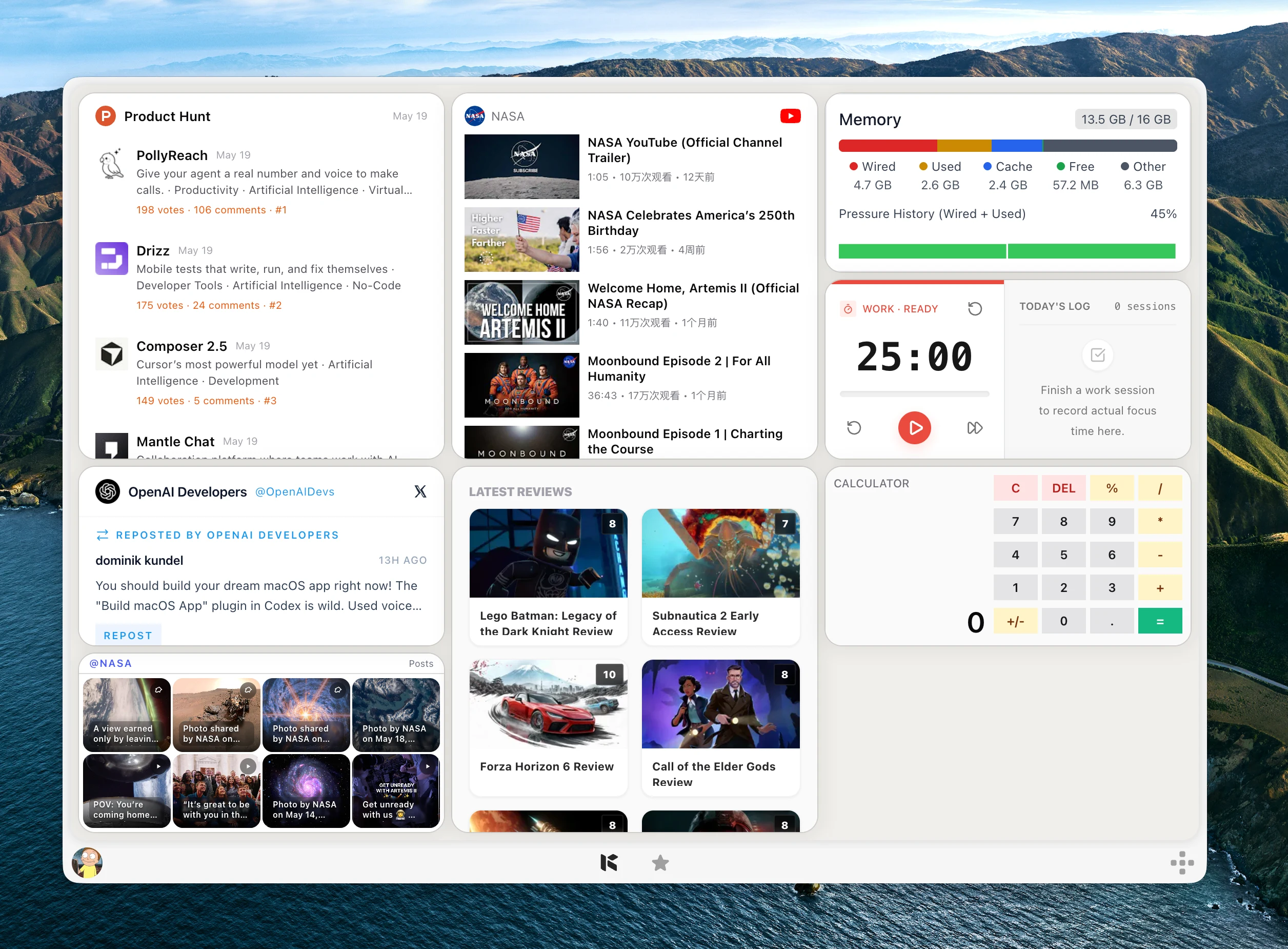
Editing widgets on Mac depends on the widget. Some widgets let you choose an account, list, location, calendar, device, or view. Others only let you move or remove them.
The useful way to think about widget editing is simple: change the widget content, change where it appears, or change the widget system settings.
If the widget you want needs a custom source, custom fields, or a workflow Apple does not provide, use a custom widget tool such as Kepo instead of forcing a built-in widget to do the wrong job.
Create it with Kepo AI
If the widget you want needs a custom source, custom fields, or a workflow Apple does not provide, use a custom widget tool such as Kepo instead of forcing a built-in widget to do the wrong job.
Key solutions at a glance The main decisions from this guide, condensed into one table.
Edit the information a widget shows
Control-click a widget and look for an Edit option. If the widget supports editing, you can change the information it shows, such as a list, location, calendar, or selected source.
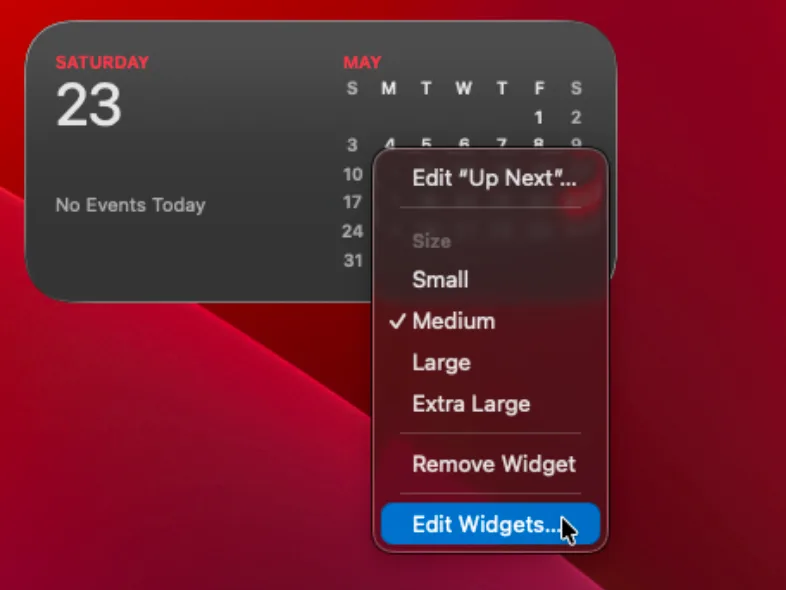
Not every widget has editable settings. If no edit option appears, that widget may only support moving, removing, or opening its app.
Move and resize widgets
To move a desktop widget, drag it to a new position. If a widget offers multiple sizes, remove the current version and add the size you want from the widget gallery.
For Notification Center, open it and use Edit Widgets when you want to add, remove, or adjust the widget stack.
Change desktop widget appearance
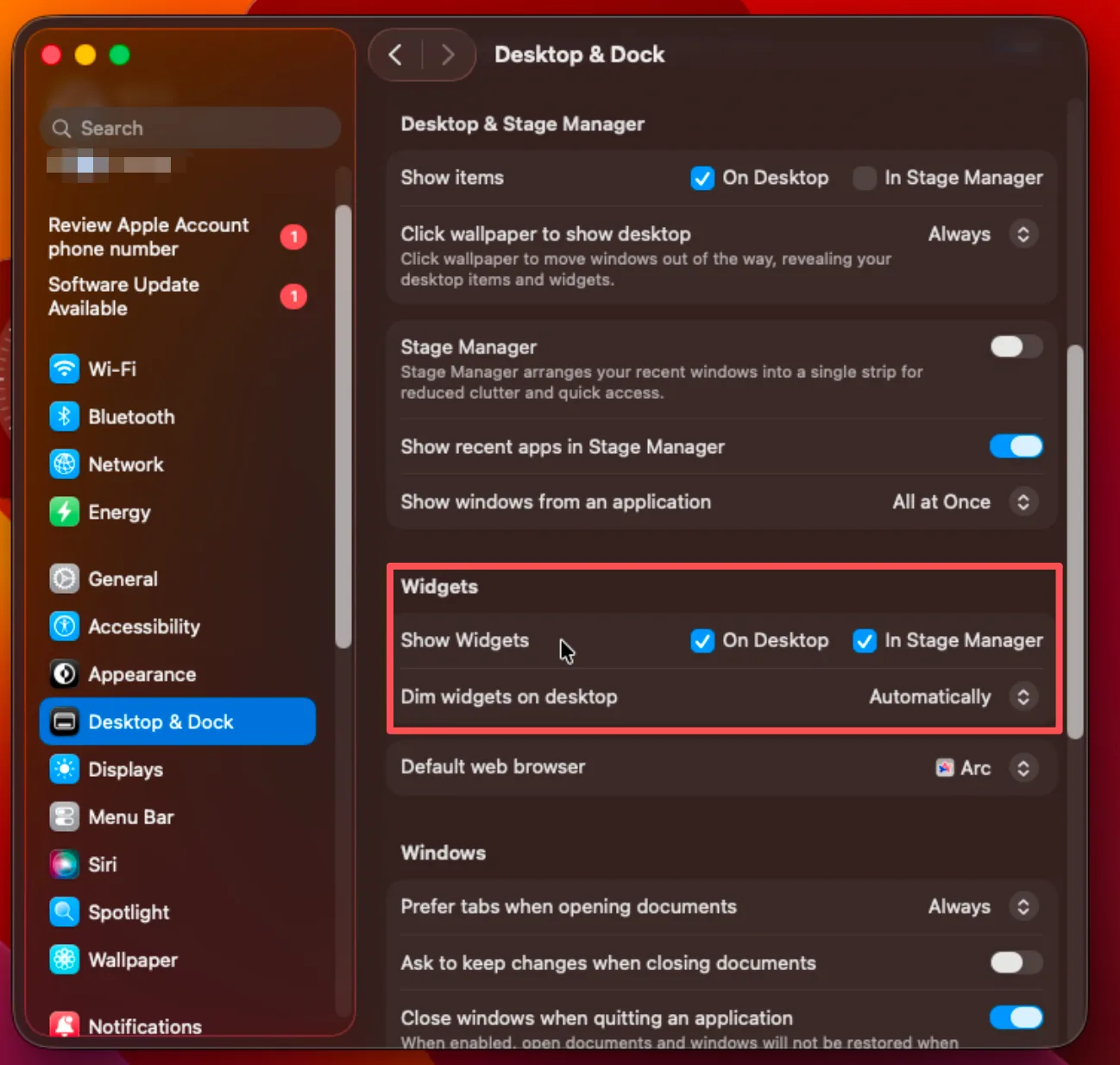
Open System Settings, go to Desktop & Dock, then review the Widgets section. You can control where widgets show and whether desktop widgets appear in color or monochrome.
Use Kepo as a Mac widget customizer
Kepo is useful when editing means more than choosing a built-in option. As a Mac widget customizer, it lets you define a source, the fields to show, the refresh behavior, and the widget layout.
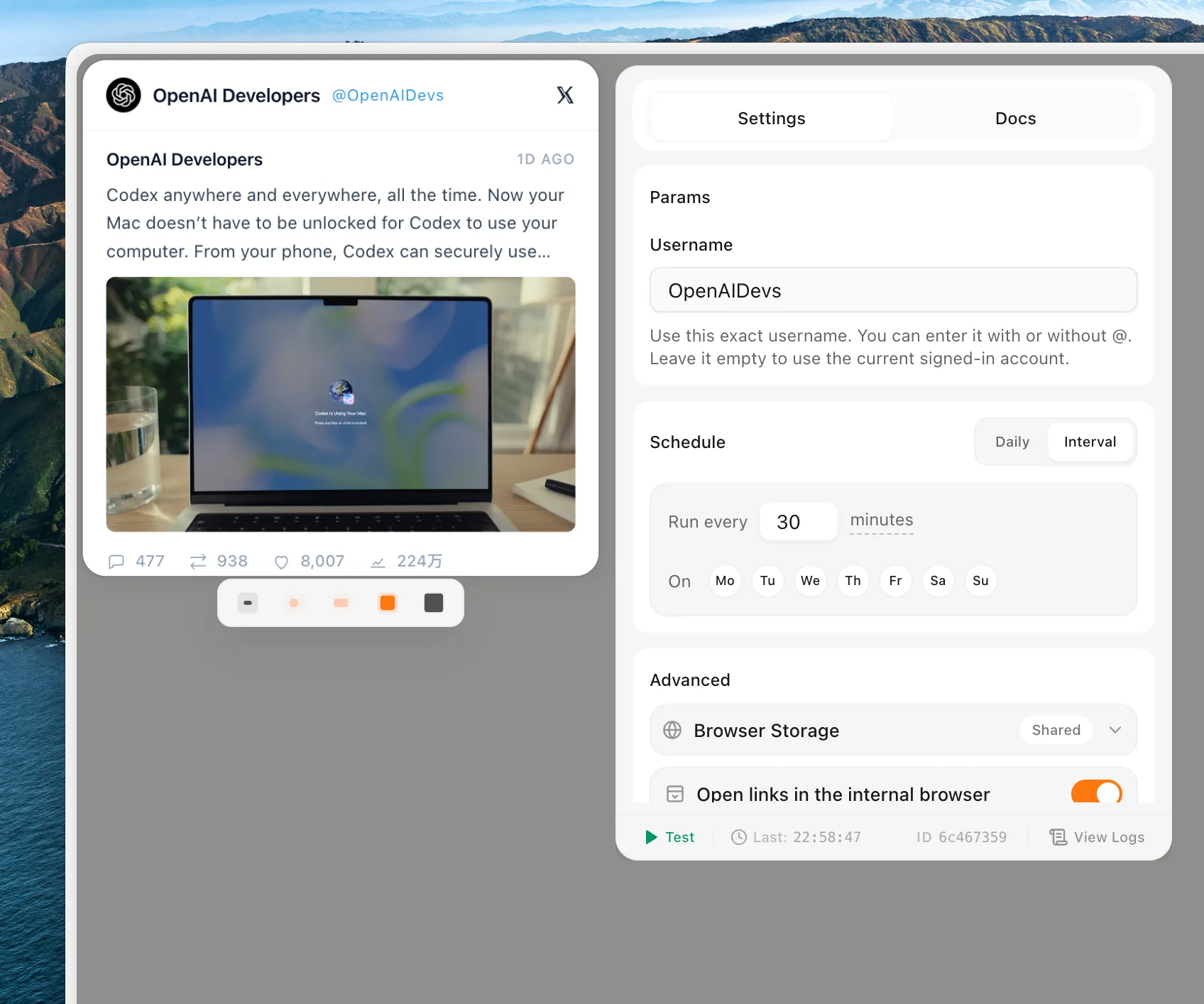
This is the better fit for a custom widget for Mac when the source is an RSS feed, website status page, GitHub check, AI text workflow, or another repeated task that does not have a native Mac widget.
Edit widgets FAQ
How do I edit a widget on Mac?
Control-click the widget and choose Edit if that widget supports editable settings.
Why does my widget not have an edit option?
Some widgets do not expose editable settings. In that case you can move it, remove it, or add a different widget size from the widget gallery.
Can I customize a widget that is not in the widget gallery?
The macOS widget gallery only includes supported app widgets. For custom sources and workflows, use a custom widget tool such as Kepo.
What is a Mac widget customizer?
A Mac widget customizer helps you adjust what a widget shows, where the data comes from, and how it appears. Kepo focuses on custom desktop widgets for feeds, websites, monitors, and workflows rather than editing Apple’s built-in widget system.
Edit built-in widgets when the built-in options are enough.
Use Kepo when the source, layout, or workflow needs to be custom.
Stay informed with Kepo on your desktop
Embed interactive widgets, monitor dynamic sites, track APIs, and run ambient AI agents right on your macOS desktop.
Related Articles
View all posts →How to calculate days between dates and business days
Enter two dates to count calendar days, weekdays, and weekends. Check whether to include the end date, follow a worked example, and account separately for holidays.
How to find IP address on Mac: local vs. public IP explained
Learn how to find IP address on Mac across local network interfaces and public gateways. Master Terminal shortcuts, understand private vs. public routing, and pin live network widgets to your desktop.
How to crop an image on Mac: native tools and instant workflows
Crop an image on Mac with Preview or Photos, or try the center-crop tool on this page. Compare selection controls, aspect ratios, PNG export, and ways to preserve the original.
How to add widgets on Mac with AI-built custom widgets
A practical guide to adding widgets to the Mac desktop, using the built-in widget gallery, and creating custom widgets when the widget you need does not already exist.