Meet Kepo
Kepo helps you create focused widgets for the information you follow and the tools you use every day.
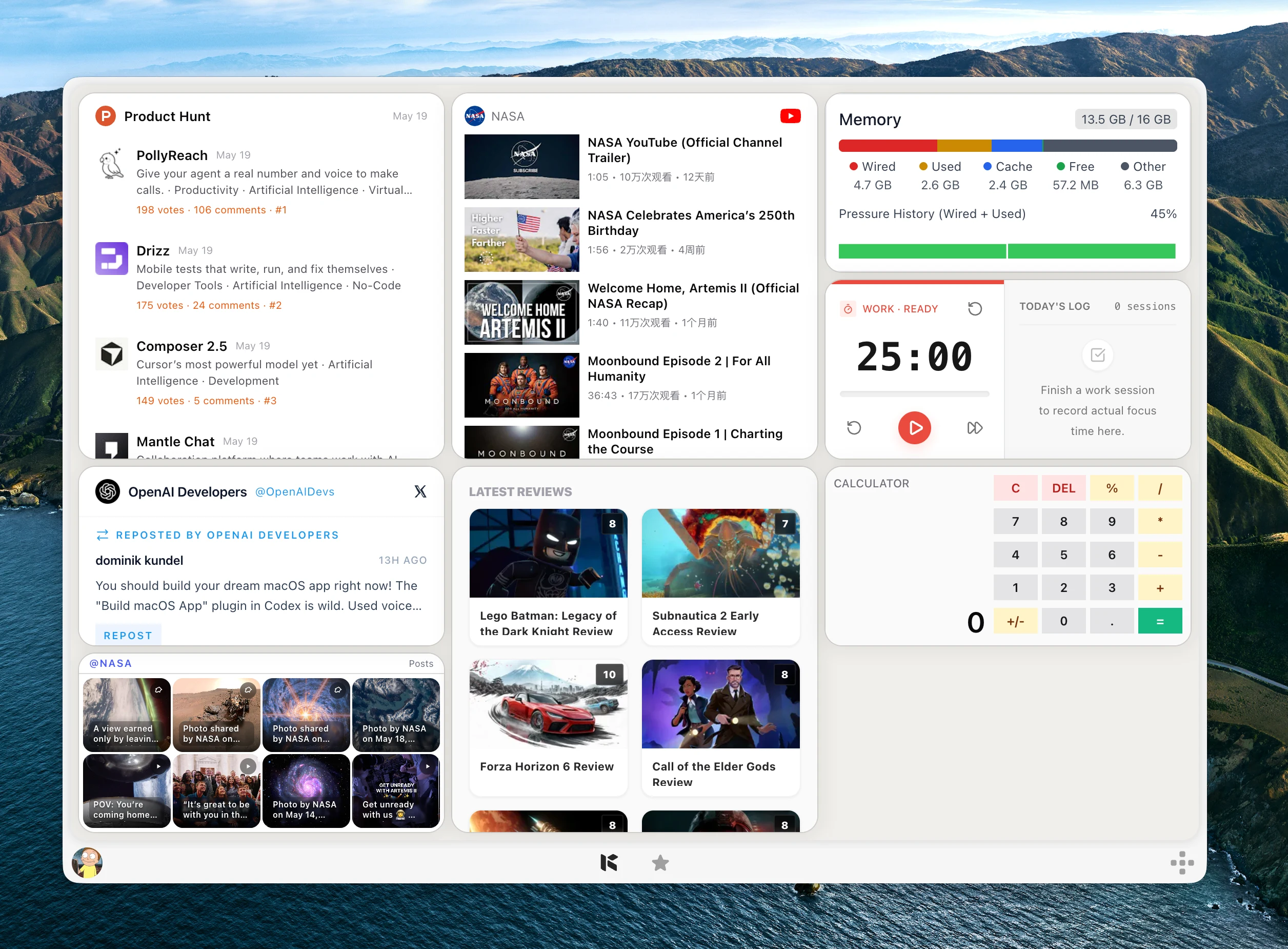
This is how a desktop slowly turns into a mess.
A news site in one tab. A price chart in another. RSS feeds somewhere else. A task list, a small utility, a product update, a page you keep checking, a market signal you do not want to miss.
The things you follow and the tools you use are there. They just rarely stay in the same place.
Kepo is built around a simple idea: the feeds you check every day and the tools you keep reopening should be easier to keep together. Some need to update quietly. Some help you do something quickly. Both should stay closer to you.

Create it with Kepo AI
The things you follow and the tools you use are there. They just rarely stay in the same place.
Key solutions at a glance The main decisions from this guide, condensed into one table.
Feeds and tools, not tabs
Kepo turns both information sources and tools into desktop widgets. One widget can show an RSS feed. Another can track a price, follow trending topics, monitor a page, keep a task list nearby, or become a small tool for a specific job.
Instead of switching between tabs and apps, you arrange the things you actually use into a workspace that stays with you. Bring it up with a shortcut, check what changed, use the tool you need, and go back without hunting for another window.
It feels less like checking apps, and more like having a small control surface for your day: part live information, part practical toolkit.
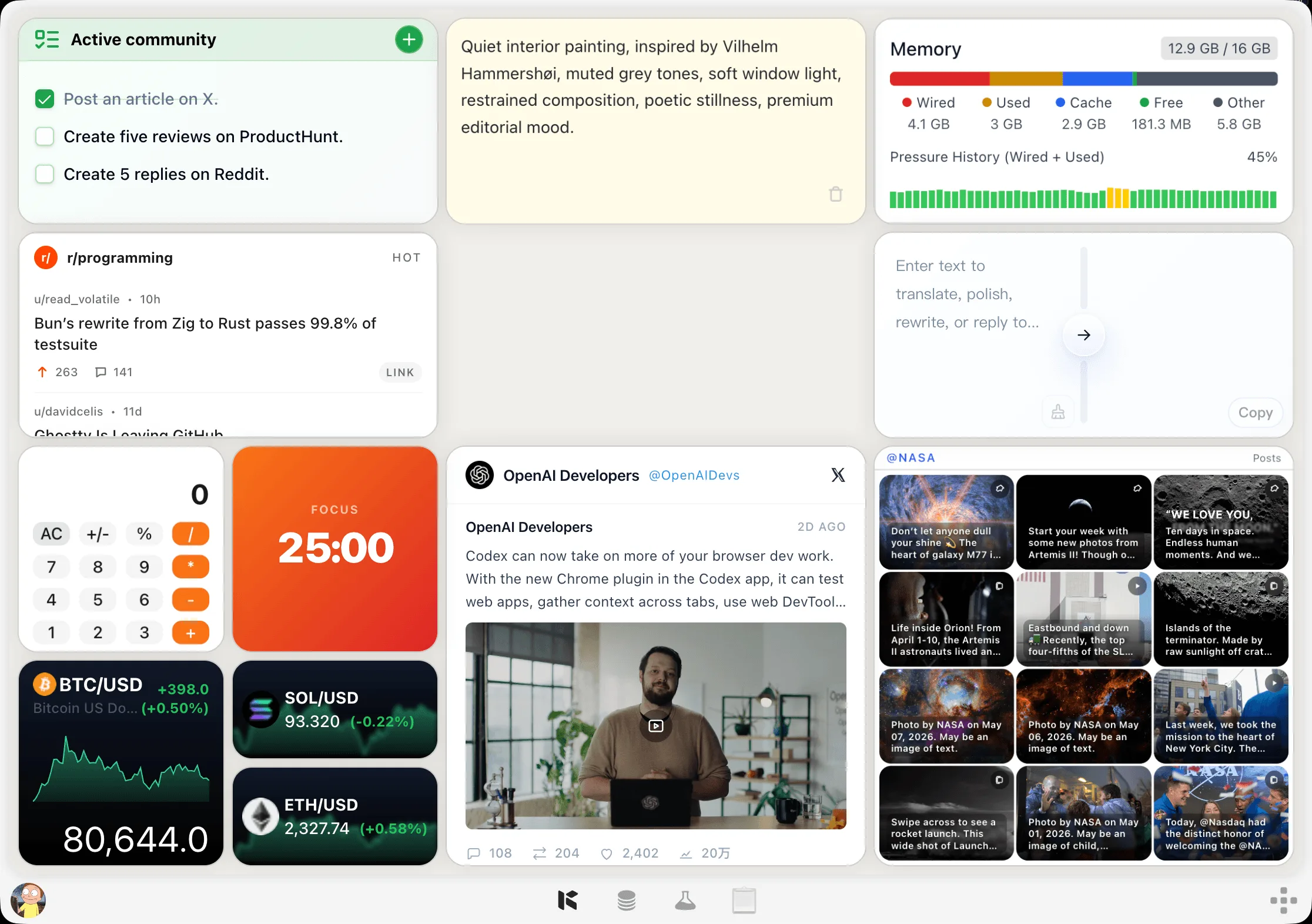
AI helps create what is missing
Sometimes the widget you want does not exist yet. Maybe you need a custom feed from a page you check often. Maybe you need a small tool that turns scattered input into something usable.
That is where AI becomes useful. You describe the source, the behavior, and the shape you want. Kepo helps turn that into a working widget, whether it is a live information source or a lightweight tool.
The goal is not to make you think about building software. The goal is to help you get the right surface for the thing you need.
Use messages. Use tools.
A Kepo workspace can be mostly messages: news, feeds, prices, alerts, trends, and changes that update in the background.
It can also be mostly tools: small interfaces that help you calculate, organize, transform, monitor, or operate something without opening another full application.
Most people need both. They want to know what changed, and they want a fast way to act on it.
A workspace that adapts with you
Imagine a product person starting the morning with Product Hunt, RSS feeds, market prices, a competitor page, a small research helper, and today’s tasks already visible.
No setup ritual. No tab cleanup. No repeated searching. No need to keep rebuilding the same tiny workflow by hand.
Kepo is for people who work with changing information and repeated actions: builders, investors, operators, researchers, writers, and anyone who keeps a mental list of things they need to check or do again.
Why we are building Kepo
We do not think people need more places to look.
They need fewer interruptions, better surfaces, and small tools that can be shaped around their own routines.
Kepo is our attempt to make the desktop feel alive in a useful way. A place where information can update, tools can stay close, and AI can help create the missing pieces.
Not another inbox.
Not another feed.
A workspace for the feeds and tools you actually use.
Stay informed with Kepo on your desktop
Embed interactive widgets, monitor dynamic sites, track APIs, and run ambient AI agents right on your macOS desktop.
Related Articles
View all posts →How to calculate days between dates and business days
Enter two dates to count calendar days, weekdays, and weekends. Check whether to include the end date, follow a worked example, and account separately for holidays.
How to find IP address on Mac: local vs. public IP explained
Learn how to find IP address on Mac across local network interfaces and public gateways. Master Terminal shortcuts, understand private vs. public routing, and pin live network widgets to your desktop.
How to crop an image on Mac: native tools and instant workflows
Crop an image on Mac with Preview or Photos, or try the center-crop tool on this page. Compare selection controls, aspect ratios, PNG export, and ways to preserve the original.
How to add widgets on Mac with AI-built custom widgets
A practical guide to adding widgets to the Mac desktop, using the built-in widget gallery, and creating custom widgets when the widget you need does not already exist.